
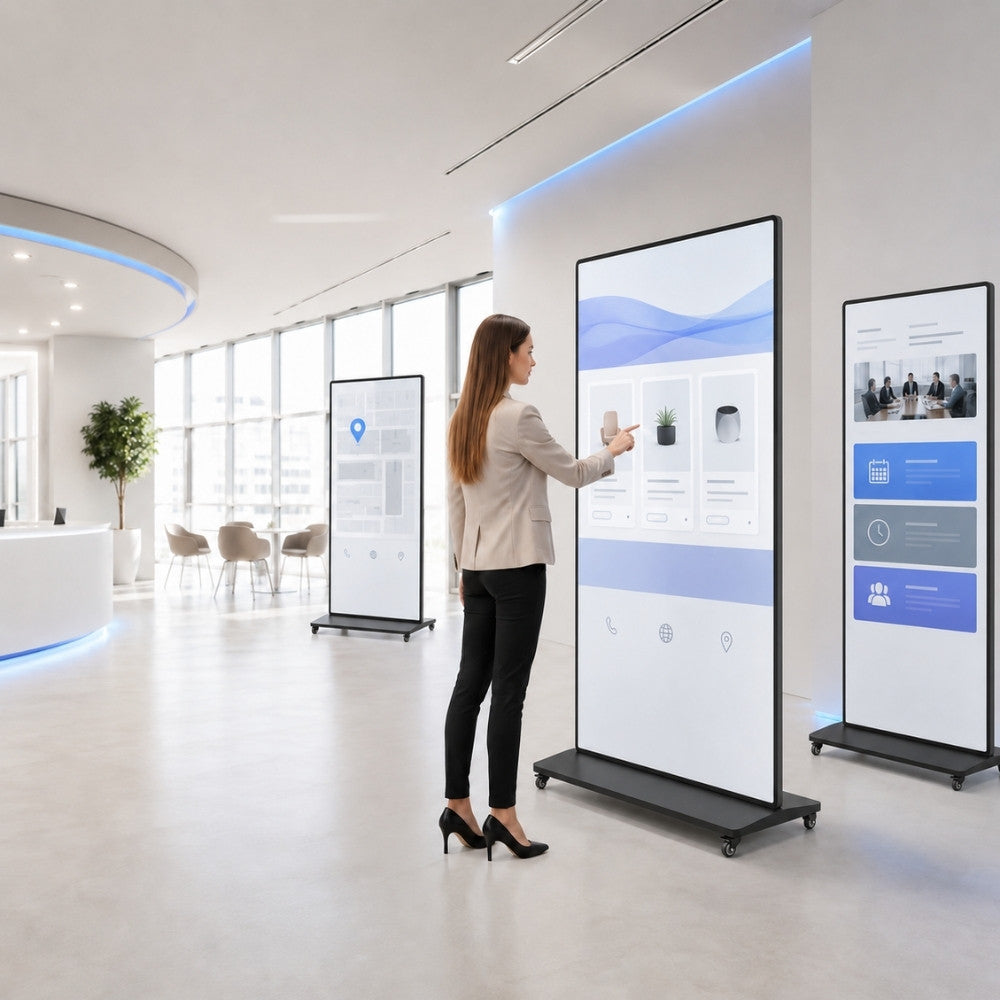
Interactive digital signage is useful when people need to do more than look at a screen. It helps them search, choose, learn, check in, share content, or move through a space with less friction.
Most people understand digital signage as a screen that plays content. A menu board in a restaurant. A promotion screen in a retail store. A schedule board in a lobby. That is still true, and it still has value.
Interactive digital signage goes one step further. It gives people a way to take action. They can touch the screen, scan a QR code, browse a map, mirror a device, check information, or use a self-service flow. In some spaces, that small change makes the screen feel less like an advertisement and more like a service point.
At MWEdisplay, we see this need across retail stores, offices, schools, event venues, public service spaces, and small project deployments. Some buyers need one touchscreen kiosk. Some need a batch of displays for a site. Some are system integrators planning a larger AV project. The useful question is often the same: what should people be able to do with the screen?
What is interactive digital signage?
Interactive digital signage is a display system that allows users to engage with content instead of only watching it. The interaction can be simple or advanced. A touchscreen map is interactive. A self-ordering kiosk is interactive. A conference room display that supports screen sharing and annotation is also interactive.
The word "interactive" can sound big, but the idea is simple. The screen should respond to a user's need. That need may be finding a room, checking a product, joining a meeting, viewing a menu, scanning a code, or sending content from a phone to a larger display.
A good interactive display does not need to feel complicated. It should make one task easier for the person standing in front of it.
This is why interactive digital signage works best when it starts with the user journey. If people only need to see a short message, a non-touch display may be enough. If they need to choose, search, compare, or control content, interaction starts to matter.
Interactive signage vs regular digital signage
Regular digital signage mainly broadcasts content. It is good for promotions, menus, announcements, brand videos, and public information. The viewer reads or watches, then moves on.
Interactive digital signage invites the viewer to do something. That may mean touching the screen, selecting content, typing information, scanning a QR code, using a map, or connecting another device. The screen becomes part of a workflow, not just a display surface.
| Type | Main role | Best for | Common features |
|---|---|---|---|
| Regular digital signage | Show content | Ads, menus, notices, brand videos | Media playback, scheduling, split screen, USB or CMS updates |
| Interactive digital signage | Support action | Wayfinding, self-service, product lookup, collaboration | Touchscreen, apps, screen mirroring, QR codes, remote control |
The difference is not always about hardware alone. A non-touch display can still create a light interactive path with QR codes or mobile landing pages. A touchscreen can still fail if the content is hard to use. So the real focus should be the experience, then the hardware.
Common ways people interact with digital signage
There is no single form of interaction. Different spaces need different patterns. In a store, people may browse products. In a hotel, they may look for an event room. In a meeting space, they may share a laptop screen. In a public office, they may check service steps before speaking with staff.
- Touchscreen menus, maps, forms, and product catalogs
- QR codes that send users to mobile pages, forms, coupons, or more detail
- Screen mirroring from phones, tablets, or laptops
- Wayfinding for malls, campuses, hotels, hospitals, and public buildings
- Self-service actions such as check-in, ordering, queue guidance, or inquiry
- Remote content publishing for teams that manage several screens
- Split-screen layouts that show video, text, images, maps, or schedules together
Some of these features need a touchscreen. Some do not. That is worth saying clearly. "Interactive" should not become a reason to add features no one will use. Good planning keeps the system focused.
Where interactive digital signage works well
Interactive signage becomes useful when people are already looking for guidance, information, or control. It works less well when the viewer is only passing by for two seconds. In those cases, a bright and clear display may do the job better.
| Space | How people use it | Useful display type |
|---|---|---|
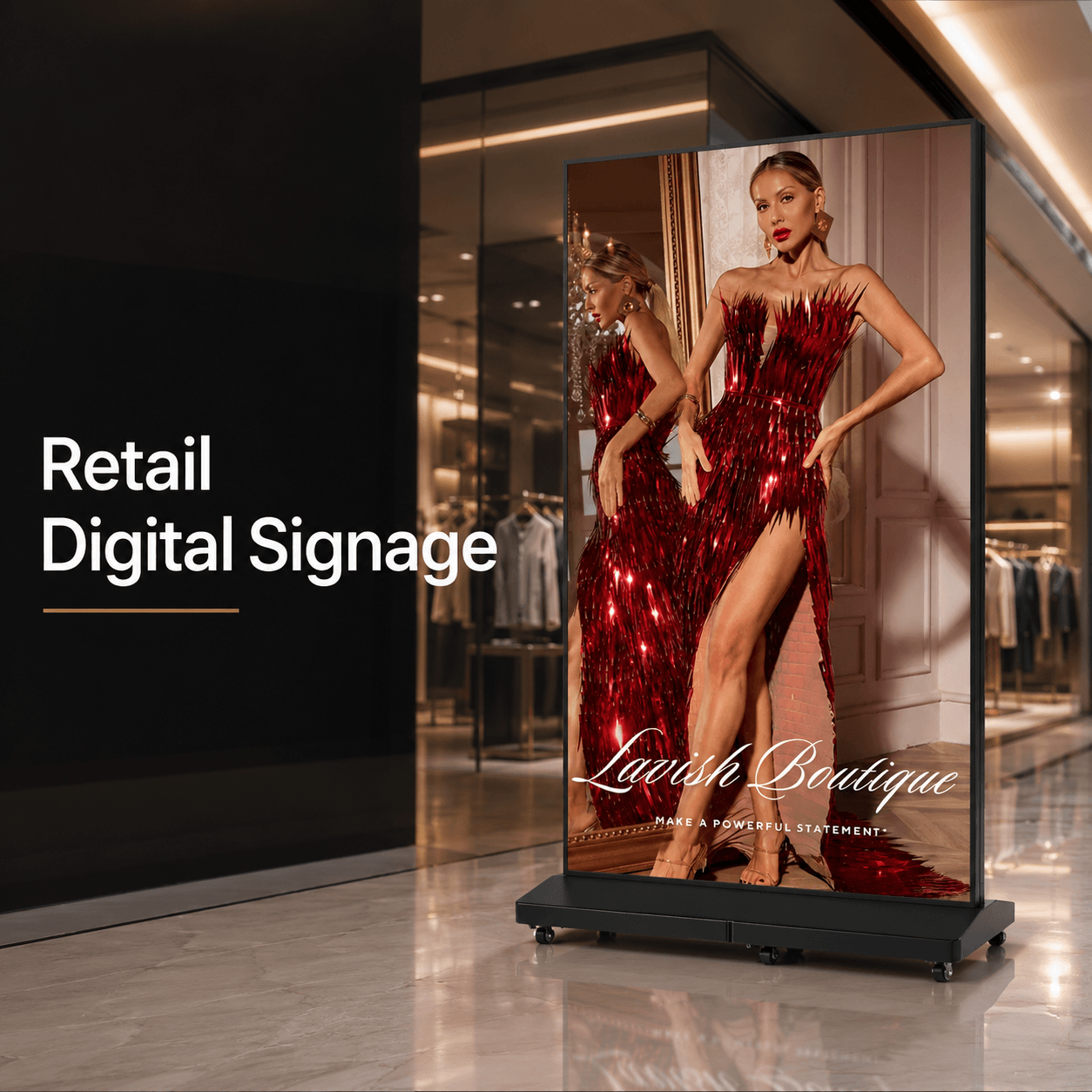
| Retail stores | Browse products, check promotions, scan offers, compare options | Touch kiosk or floor-standing signage |
| Restaurants | View menus, order, check queue status, see daily offers | Touchscreen kiosk or menu display |
| Hotels and lobbies | Find rooms, check event schedules, view local information | Wayfinding touchscreen or lobby display |
| Offices | Share screens, book rooms, present ideas, join hybrid meetings | Interactive whiteboard or smart touch screen |
| Schools and training rooms | Annotate lessons, share content, support group learning | Interactive whiteboard |
| Events and trade shows | Show product detail, mirror demos, collect attention in a booth | Mobile touchscreen kiosk or portable display |
| Public service spaces | Guide visitors, show procedures, reduce repeated questions | Information kiosk or digital display |
Large AV events such as InfoComm also show a wider trend: screens are no longer only used for display. They are becoming part of how people move through physical spaces, learn, present, and make decisions.
What to think about before planning a system
It helps to slow down before choosing a screen size. Screen size matters, of course. But it should come after the use case. A 43-inch mobile touchscreen may work better than a larger fixed display if the screen needs to move between rooms or event booths. A large 4K display may work better in a meeting room where several people view shared content at the same time.
Start with the user's task
Ask what the person should do at the screen. Search, choose, scan, learn, order, present, or simply watch.
Match the interaction level
Touch is useful for active tasks. QR codes work for light mobile actions. Screen mirroring helps in meetings and demos.
Check the environment
Indoor retail, outdoor public areas, offices, and event spaces need different brightness, structure, and installation methods.
Plan content updates early
USB playback may be enough for one screen. Remote publishing or CMS control matters when teams manage content often.
Keep maintenance simple
Think about Wi-Fi, LAN, HDMI, USB, access to ports, app support, restart needs, and who will manage the display day to day.
Touchscreen is important, but it is not the whole story
Many people connect interactive digital signage with touchscreen hardware. That makes sense. Touch is the most direct way for a person to interact with a screen.
Still, the screen is only one part. The operating system, content app, network connection, ports, mounting method, and management workflow all affect the final result. A touchscreen with poor content will feel clumsy. A simple display with a clear QR flow can feel useful. This is the practical side of signage that people sometimes notice only after installation.
Touch technology
Capacitive touch usually feels familiar because it is close to phone and tablet interaction. Infrared touch is common on larger whiteboards and meeting screens because it supports multi-point writing and group use.
Operating system
Android-based displays can support many signage, media, and app workflows. Windows support may matter when a project uses custom software or a specific business system.
Connectivity
Wi-Fi is convenient. Ethernet is often more stable for fixed commercial installations. USB and HDMI still matter because teams often need simple local playback or laptop input.
Content control
For one display, manual updates may be fine. For many screens, remote publishing, scheduling, split-screen layouts, and device management save time.
MWEdisplay examples in real use cases
MWEdisplay carries digital signage, touch screens, interactive whiteboards, LED display products, outdoor screens, and compact smart displays. For interactive digital signage, three product directions are especially relevant. Think of these as examples, not a hard buying path.
MWE Mobile Digital Signage Kiosk
A mobile touchscreen kiosk fits spaces where content and location both change. It can support app publishing, screen mirroring, plug-and-play content, and multiple inputs. The flight case and wheels help for trade shows, product demos, pop-up retail, training spaces, and shared commercial areas.
MWE 4K UHD Smart Interactive Touchscreen Whiteboard
For meeting rooms, classrooms, training spaces, and hybrid collaboration, an interactive whiteboard has a different job from a retail kiosk. It needs clear 4K viewing, multi-point touch, writing tools, screen sharing, camera and microphone support, and app flexibility for team workflows.
MWE Floor Standing Digital Signage
Some spaces do not need full touch interaction. A floor-standing digital signage display can still help with promotion, wayfinding, announcements, and brand content. Features such as Android system, Wi-Fi or wired network, HDMI input, USB playback, timer settings, and split-screen layouts support clear daily operation.
When you may not need interactive signage
This part matters. Not every screen needs to be interactive. If the goal is only to show a brand video, menu, announcement, or simple promotion, a regular digital signage display may be cleaner, cheaper, and easier to manage.
Interactive features make sense when they reduce friction. If they add steps, they can hurt the experience. A touchscreen in a busy walkway may not help if nobody has time to stop. A QR code may work better. In a quiet lobby, the opposite may be true. People may welcome a touch map or self-service screen because they already need help.
A useful rule is this: add interaction only when the user has a clear reason to interact.
A calm way to plan interactive digital signage
Interactive digital signage can support retail, education, offices, events, hospitality, healthcare, and public service spaces. But the best systems usually come from simple planning, not from adding every feature available.
Start with the space. Watch how people move through it. Notice where they ask questions, wait, search, compare, or need instruction. Then choose the display and content flow that answers that moment. Sometimes that means a mobile touchscreen kiosk. Sometimes it means a meeting-room whiteboard. Sometimes it means a normal digital signage screen with well-planned content.
That is the quiet value of interactive digital signage. It helps a physical space communicate better. When the screen supports a real task, people feel it right away, even if they never think about the technology behind it.
Interactive digital signage FAQ
What is interactive digital signage?
Interactive digital signage is a display system that lets users engage with content. This can include touchscreen menus, wayfinding maps, QR codes, screen mirroring, self-service tools, or meeting room collaboration.
Is interactive digital signage always a touchscreen?
No. Touchscreens are common, but interaction can also come from QR codes, mobile pages, screen mirroring, remote content control, or other user actions linked to the display.
Where is interactive digital signage used?
It is used in retail stores, restaurants, hotels, offices, schools, healthcare spaces, events, showrooms, and public service buildings. The best use depends on what people need to do in that space.
What features should I check before choosing an interactive display?
Check the touch technology, screen size, operating system, app support, Wi-Fi or LAN connection, USB and HDMI ports, mounting method, content update workflow, and daily maintenance needs.
When is regular digital signage enough?
Regular digital signage is often enough when the screen only needs to show ads, menus, schedules, notices, or brand videos. Interactive features are most useful when users need to search, choose, control, or respond.

Leave a comment
This site is protected by hCaptcha and the hCaptcha Privacy Policy and Terms of Service apply.