
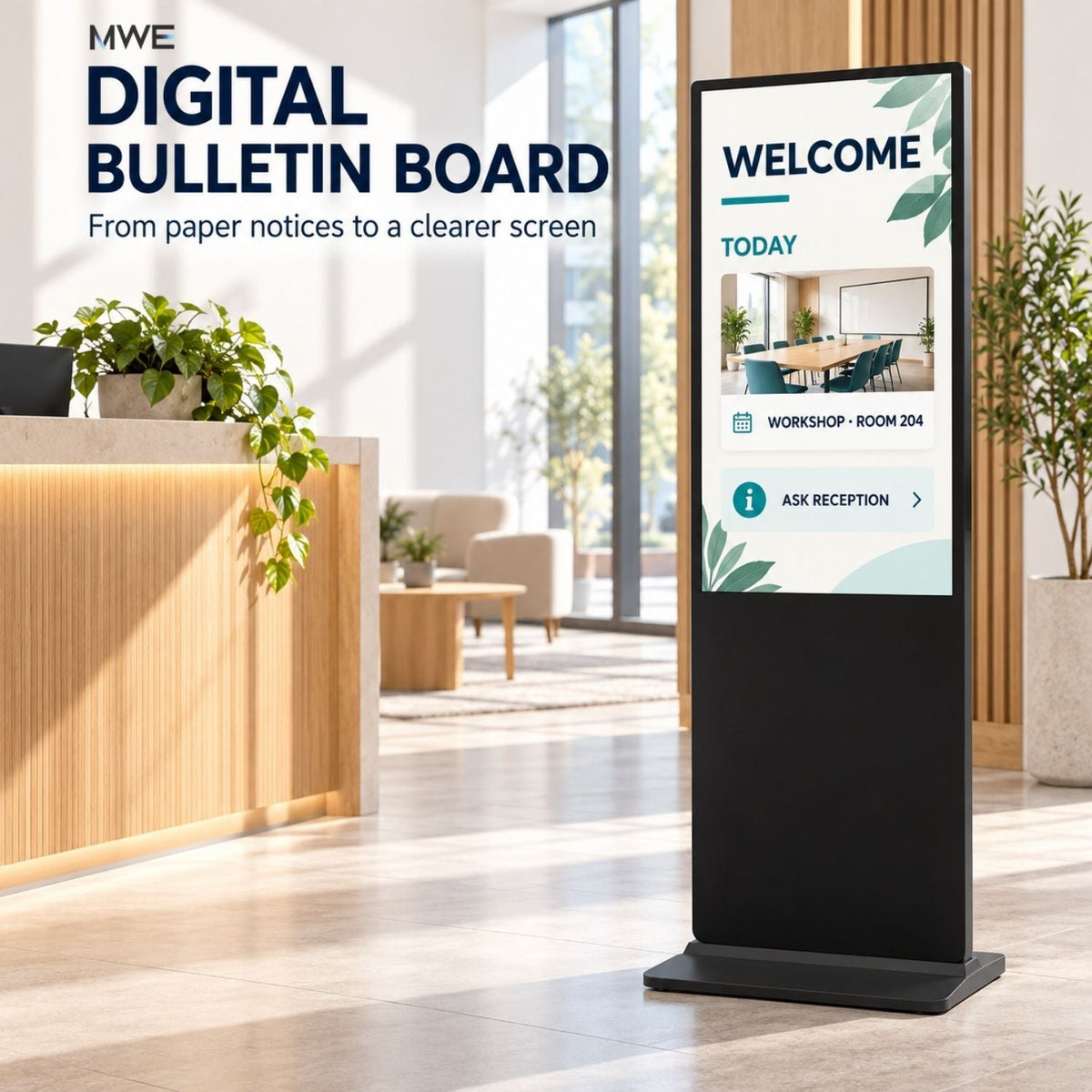
A room change is pinned beneath an old event flyer. A visitor stops at reception to ask where to go. Someone updates the notice in a shared folder, but the version on the wall still shows yesterday's information.
A digital bulletin board can make those updates easier to publish. It cannot decide which notice is correct or who should remove it. For an office, school, church, or shared lobby, the useful starting point is one audience, a readable screen, and a clear publishing routine.
What is a digital bulletin board?
A digital bulletin board is a screen that displays announcements, schedules, reminders, and other shared information in a physical space. It is a practical application of digital signage, also commonly called a digital notice board or electronic bulletin board.
Think of the system as three parts: the display people see, the player or software that shows the content, and the person responsible for keeping that content accurate. The player may be built into the display or connected separately.
Remote updates and automated schedules depend on the software and configuration. They are not automatic consequences of buying a screen.
Online collaboration board vs. physical announcement screen
The same search term can describe two different needs. Padlet Board, for example, supports collecting and organizing content, sharing it, and collaborating with others. Its presentation and sharing options can be useful, but creating a shared board is not the same task as running an unattended announcement screen.
| Format | Main job | What to check |
|---|---|---|
| Online collaboration board | Let people contribute, organize, and discuss material on their own devices. | Access permissions, moderation, sharing, and how participants navigate the board. |
| Physical digital bulletin board | Help people read selected information while passing or waiting. | Text size, viewing position, playback reliability, and removal of old notices. |
| Interactive information kiosk | Let a visitor choose what to see or complete a defined task. | Touch interface, navigation, privacy, and compatible application software. |
You can connect these approaches, but test the complete workflow. A collaborative webpage may need scrolling, authentication, or a particular browser. It may also reveal contributions that have not been approved for a public screen. Do not assume that a page that works on your laptop will run unattended on every signage device.
Paper vs. digital bulletin boards: when should you switch?
A digital board is worth considering when notices change often, several locations need the same update, or printed material is repeatedly left in place after it expires. Paper may still be the simpler choice for a small number of stable notices.
| Question | Paper board | Digital board |
|---|---|---|
| How are changes made? | Print and replace the notice at each location. | Replace local files or publish through compatible software. |
| Can people read everything at once? | Several notices can remain visible, although clutter can build up. | A fixed layout can stay visible; rotating slides require people to wait. |
| Who removes expired content? | A person must remove it. | A person still owns the decision; supported scheduling can help automate removal. |
| What happens without power? | Printed information remains visible if there is enough light. | The screen stops displaying information. Maintain another route for essential messages. |
| What costs continue? | Printing, supplies, and staff time. | Electricity, content work, maintenance, and any software or support fees. |
The sensible result may be a combination: a digital board for changing announcements and selected printed material for information that should remain continuously available. Do not discard another communication channel simply because the screen looks more modern.
What should you put on the screen?
Build the first layout around a question people already ask. For a lobby, that might be “What is happening here today?” For a staff area, it might be “What has changed for my shift?”
Start with three content roles rather than a long playlist:
- Orient: Explain where the viewer is and where to go next.
- Update: Show the notice that matters now, with its date, time, and location.
- Act: Give one next step, such as visiting reception or opening a short link.
School and church boards can use the same structure for room assignments or community activities. Keep the details specific to the location instead of showing the entire organization's notice archive everywhere. For other applications, see our digital signage examples.
Example: a shared-building lobby notice
The following is an illustrative layout, not a customer case study.
Thursday, October 22 • 6:00–7:00 PM
Room 204 • Second floor
Register at reception by Wednesday, October 21.
This notice answers what, when, where, and what to do. A full event description belongs on a webpage or handout, not in a paragraph squeezed onto a passing-view screen.
If you add a QR code, label its purpose and provide a readable alternative, such as a short link or reception contact. Test the actual code on the actual display. A tiny code that scans on a desktop preview may fail at the intended viewing distance.
Make notices readable before adding animation
Rebuild a paper flyer for the screen instead of shrinking an entire page into a slide. Remove background details, emphasize the action, and give the date and location enough space to stand out.
- Use a strong contrast between text and background. Avoid placing essential words over busy photography.
- Keep the most important notice visible where possible. Do not bury a room change late in a rotating playlist.
- Use short transitions or static slides. A moving background should not compete with the message.
- Test from the normal approach and waiting positions, not only directly in front of the screen.
- Check reflections under the room's real lighting at different times of day.
- Keep an accessible alternative for people who cannot comfortably read or interact with the screen.
There is no single font size or slide duration that works in every building. Ask an unfamiliar viewer to read the notice and explain the next step. If they cannot finish before it changes, shorten the content or extend the display time.
Give every notice an owner and an end time
The publishing process deserves as much attention as the hardware. A bright, working display can still carry an incorrect message.
Use a simple notice record before publishing. It can live in a shared spreadsheet; a sophisticated approval system is not required for a one-screen pilot.
| Field | Example | Reason |
|---|---|---|
| Notice and intended audience | Community workshop / building visitors | Prevents sending internal information to a public display. |
| Content owner and backup | Events coordinator / reception supervisor | Identifies who can confirm or correct the details. |
| Approver | Building manager | Provides a final check before the notice becomes public. |
| Screen location | Main lobby only | Keeps the notice relevant to the people seeing it. |
| Start and end | Start October 19; remove after the October 22 event, using local building time | Makes the intended display window explicit. |
| Early revision | Remove the registration request when registration closes on October 21 | A notice may need changing before the event itself ends. |
| Fallback and confirmation | Reception has the current details; staff checks the screen after publishing | Provides another answer if the display or update fails. |
That early-revision field matters. An event can still be upcoming while its registration link is already out of date. Treat a deadline, a room change, and the end of an event as separate update triggers.
With local playback, schedule a person to replace or remove the file. With a CMS, confirm how expiry, time zones, offline playback, and device clock settings interact. A scheduled end time is useful only if the player applies it correctly.
For shared submissions, keep contribution and publication separate: collect the request, check it, then place the approved version on the screen. Avoid public display of private records, personal contact details, or unapproved photographs.
Local playback vs. cloud CMS
Choose the update method by how often the information changes and how far someone must travel to maintain it.
Local files: a manageable starting point for one screen
Compatible local image or video playback can suit a board with a small number of notices and an on-site owner. Keep one clearly labeled current playlist and a neutral fallback slide. Verify file formats, orientation, storage behavior, and what appears after a power interruption.
The tradeoff is manual work. A copied file does not know that a meeting was cancelled unless the playback system has a suitable update mechanism or someone changes it.
CMS: useful when update work becomes distributed
A content management system may provide remote publishing, playlists, scheduling, permissions, and monitoring. Available features depend on the provider, plan, player, and configuration.
For example, NoviSign's bulletin-board offering describes remote updates and scheduling. ScreenCloud's guide describes pairing a screen or player and arranging content in playlists. These are examples of software workflows, not confirmation that either service is included with, or certified for, every MWE display.
Before choosing software, ask for a demonstration using your intended device and one real notice:
- Publish a notice and confirm it appears on the correct screen.
- Change its room or time, then check how quickly the change reaches the display.
- Disconnect the network and inspect what continues playing.
- Let a test notice expire while offline, then reconnect and check again.
- Restart the device and confirm that normal playback resumes without a staff login.
Keep ordinary announcement screens separate from assumptions about emergency notification. Do not rely on an untested playlist or internet connection as the only way to deliver an urgent message.
Choosing an MWE display for a digital bulletin board
Choose the display around the content people must read. For everyday notices, evaluate text legibility and placement before decorative impact.
MWE Floor Standing Digital Signage 32″–65″
The MWE Floor Standing Digital Signage 32″–65″ range includes touch and non-touch options, black and white variants, USB playback, and HDMI input. For a passive lobby announcement board, start by evaluating the non-touch version.
The 43-inch model is a size option within this range, not a separate wall-mounted product. The published 43-inch overall dimensions are approximately 24.04 inches wide × 17.72 inches deep × 71.27 inches high. Mark out the footprint before deciding where it belongs.
A floor-standing display avoids the need for a wall-mounted screen at that location, but still needs suitable power, cable management, stable placement, and an unobstructed route around it. A wall-mounted installation may be more appropriate where floor space is limited; see our digital signage installation guide.
Confirm the selected variant's resolution, operating specifications, included software, and licensing before ordering. Test third-party applications on the exact device or a compatible external player.
Where the 80″ P1.86 LED display fits
The MWE 80″ P1.86 Spliceable LED Digital Signage Display has a listed single-unit resolution of 344 × 1032 pixels. It is an option to evaluate for large welcome messages and visual announcements, rather than treating its larger diagonal as a reason to fit more small text.
For a notice-heavy board, compare both displays using the same real content at the intended reading distance. Our LED pixel pitch guide explains why pixel pitch, resolution, and viewing distance are separate considerations.
Start with one screen and a defined trial
The lowest-complexity starting point may be a suitable display you already own. If you need new hardware, buy for the first proven location rather than an assumed building-wide rollout.
Use this as a practical pilot plan, not a promised installation timetable:
- Choose one recurring question. Record the confusion you want to reduce, such as visitors asking which room hosts today's session.
- Prepare one readable template. Test it with real notices before adding feeds, widgets, or animation.
- Name an owner and backup. Agree who updates the board when the usual person is away.
- Run through normal and failure conditions. Test a changed notice, an expired notice, a restart, and loss of connectivity if applicable.
- Review after a defined period. A two-week trial can be a useful starting point if it includes a representative mix of your building's activities.
Track update time, missed removals, staff corrections, and the recurring questions people still ask. Ask viewers what they understood, not only whether they noticed the screen. These observations help decide whether to adjust the content, move the display, or add another location; they do not by themselves prove a financial return.
Budget for the whole routine: hardware, any player, setup, software, power, content work, and support. Reusing a screen can reduce the initial purchase cost, but a labor-intensive update process can still be expensive. Use our digital signage cost guide for a broader budgeting framework.
Build a board people can trust
A useful digital bulletin board gives the right audience a current answer. Begin with a small amount of well-maintained information, make it readable in the real space, and give every time-sensitive notice a clear exit date.
If you are planning an indoor announcement screen, contact MWEdisplay with a photo of the location, the expected viewing distance, a sample notice, and the intended update method. Those details are more useful for choosing a display than screen size alone.
Frequently asked questions
What is a digital bulletin board?
A digital bulletin board is a screen used to share notices, schedules, reminders, and other information in a physical space. It combines a display, a playback method, and a process for keeping the content current. Online collaboration boards are a related but different use of the term.
Can I use an existing TV as a digital bulletin board?
Yes, if its inputs, operating conditions, and playback method fit the project. Test the actual content, viewing position, restart behavior, and any software or media player before relying on it. Check the manufacturer's operating and warranty terms for the intended use.
Do I need a monthly subscription?
Not necessarily for a basic board using compatible local image or video playback. Remote publishing, scheduling, permissions, monitoring, and integrations may require software with separate licensing. Confirm exactly what is included with the selected hardware and software.
Can a digital bulletin board work without internet?
Locally stored content can continue playing when the chosen device and player support it. Live webpages, feeds, and remote updates generally need connectivity. Offline behavior, including what happens to expired notices, must be tested on the actual setup.
Is Padlet the same as a digital signage bulletin board?
Padlet is an online board for collecting, organizing, sharing, and collaborating on content. A signage bulletin board is designed around displaying information in a physical location. If you want to show an online board on a screen, verify permissions, readability, browser or player compatibility, and unattended operation.
Does an announcement board need a touchscreen?
No. A passive display is usually enough for notices that people read while passing or waiting. Touch is useful when visitors need to select a language, browse a directory, or search for information, but it also requires a suitable interface and compatible software.
What screen size should I choose?
Choose size using the real notice layout, the viewing distance, and the available space. Test the smallest important text from where people will read it. Screen diagonal alone does not tell you whether a notice is readable, and a larger screen should not become an excuse to add more text.
How often should the content be updated?
Update whenever the underlying information changes, and remove notices when they stop being useful. Assign an owner and an end time to time-sensitive content, then check the actual screen. A recurring review helps, but it does not replace same-day corrections.
Product specifications and software descriptions checked October 13, 2026. Confirm the selected configuration and current service terms before purchase. The notice examples and pilot plan above are planning suggestions, not measured customer results.

Commenta
Questo sito è protetto da hCaptcha e applica le Norme sulla privacy e i Termini di servizio di hCaptcha.