
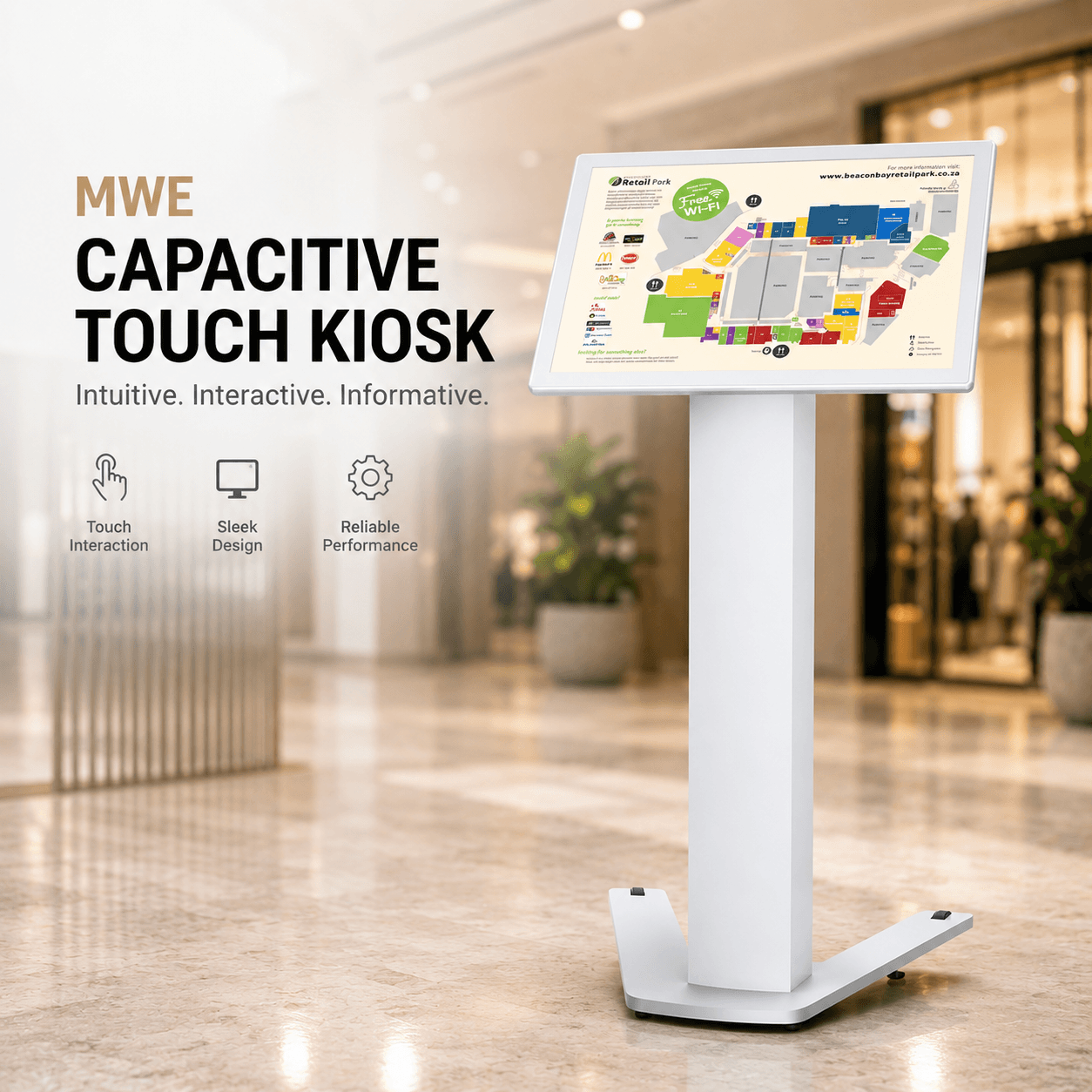
From retail promotion to event display, wayfinding to self-service — what actually matters before you buy a digital signage kiosk, and what doesn't.
A digital signage kiosk is no longer just a screen placed in a lobby or store. For many businesses, it has become a practical tool for showing information, guiding visitors, promoting products, supporting self-service, and creating a more professional environment.
The real question isn't simply "which screen should I buy?" A better question is: what does this kiosk need to do every day? That shift in thinking tends to eliminate a lot of bad buying decisions before they happen.
At MWEdisplay, we work with businesses that need display solutions for retail stores, public spaces, exhibitions, offices, campuses, and commercial projects — some buying one unit, some placing batch orders, some acting as system integrators sourcing hardware for larger deployments. This guide covers the points that actually matter.
What is a digital signage kiosk, exactly?
A digital signage kiosk is a display-based system used to present content, support interaction, or guide users in a physical space. It can be a floor-standing touchscreen, a wall-mounted information screen, a self-service terminal, or a large advertising display in a mall, hotel, hospital, campus, or event venue.
Some kiosks are interactive — users can touch the screen, search for information, place an order, check in, or view a map. Others focus purely on visual communication: advertising, brand messages, menu boards, event schedules, product promotions.
The word "kiosk" means different things in different industries. The right choice always depends on the use case — not the product name.
A restaurant thinks of a self-ordering screen. A shopping mall thinks of a wayfinding display. An event company thinks of a portable LED display. A government office thinks of an information terminal. All of these fall under the same category on paper, but they're genuinely different products in practice.
Why businesses use them
Printed posters still work for certain situations, but they can't update content quickly, and they can't support interaction. A digital signage kiosk handles both.
- Showing promotions, menus, announcements, and brand content
- Guiding visitors through malls, campuses, hotels, museums, and offices
- Supporting self-ordering, information search, check-in, or queue guidance
- Updating content remotely through Wi-Fi, Ethernet, USB, or a publishing system
- Improving the visual quality of a public or commercial space
- Reducing repeated staff explanations for basic information
In simple terms: a good kiosk helps people understand where to go, what to do, or what to buy. That sounds obvious, but in real spaces, basic clarity saves a significant amount of time — for staff and for visitors.
Start with the use case, not the screen size
Most buyers start with screen size. Understandable — a larger display looks more impressive at first glance. But screen size should come after understanding the actual job the kiosk will do.
Before choosing anything, these questions are worth working through:
- Will users touch the screen?
- Will the kiosk show ads, maps, menus, videos, or service information?
- Will it be used indoors or outdoors?
- Will content need frequent updates?
- Will the kiosk stay in one place, or move between events?
- Does it need Wi-Fi, Ethernet, USB, HDMI, speakers, or a remote publishing system?
- Will the buyer manage it directly, or will a system integrator handle deployment?
These answers usually point to the right hardware faster than any size-first approach.
| Use case | Typical location | Best kiosk type | Main buying focus |
|---|---|---|---|
| Wayfinding | Malls, campuses, museums, hospitals | Touchscreen information kiosk | Screen clarity, touch response, map software support |
| Self-service | Restaurants, hotels, service counters | Interactive touchscreen kiosk | OS compatibility, stable touch, software flexibility |
| Retail promotion | Stores, showrooms, shopping centers | Floor-standing digital signage display | Visual quality, brightness, easy content updates |
| Events and rentals | Exhibitions, trade shows, event venues | Portable LED digital signage display | Transport, setup speed, durability, splicing support |
| Public information | Government offices, banks, transit spaces | Information kiosk or digital display | Reliability, content control, long-term maintenance |
This table is a starting point, not a fixed rule. Real spaces are rarely clean categories — a retail store may also need wayfinding, a hotel may need both check-in information and promotional content, and a trade show booth may need both video advertising and product information running simultaneously.
Touchscreen or non-touch?
Touchscreen kiosks work best when users need to do something — search, select, order, check in, browse, or request information. For these tasks, touch is part of the experience, not just a feature.
Non-touch digital signage displays work better when the goal is to show content to people passing by: advertising videos, event schedules, product highlights, menus, public messages.
- Choose a touchscreen kiosk when users need to interact with the screen.
- Choose a signage display when users only need to watch or read.
- Choose a portable LED display when the screen needs to move between events or locations.
Two products — two different jobs
MWE Capacitive Touch Kiosk — 32"
Designed for practical self-service and interactive information display. Full HD IPS display at 1920×1080 resolution, Android 13 open OS, and support for external Windows boxes or hosts — which gives buyers flexibility when deploying third-party software or custom systems.
Suitable for mall navigation, information inquiry, self-ordering, retail advertising, exhibition explanation, hospital guidance, campus display, and hotel service information. Built-in Wi-Fi, Ethernet, USB, TF card, HDMI, and dual 5W speakers cover most indoor content and interaction needs. The unit also includes wheels for easier movement within a commercial space — a detail that matters more than most buyers expect.
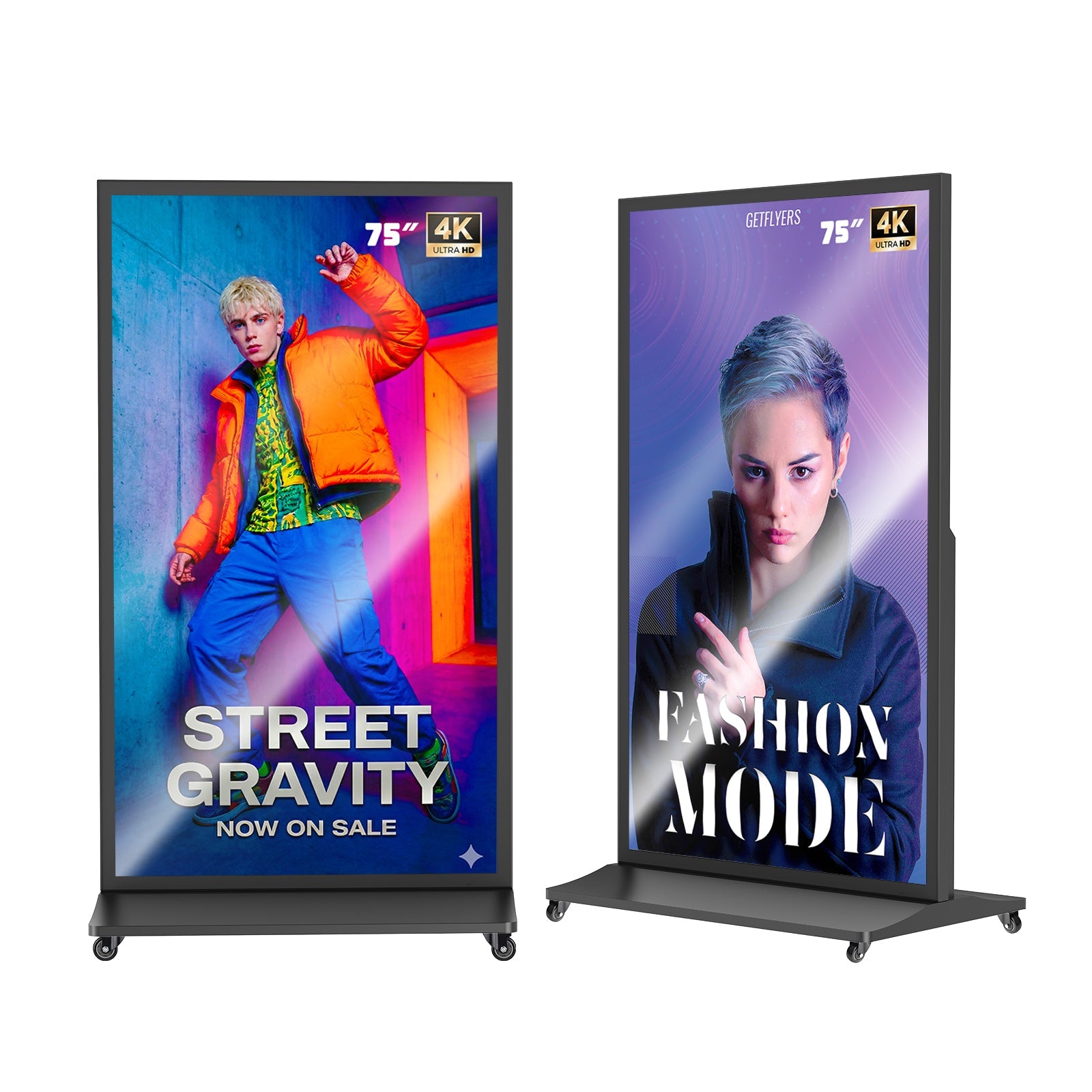
MWE 80" P1.86 Spliceable LED Digital Signage Display
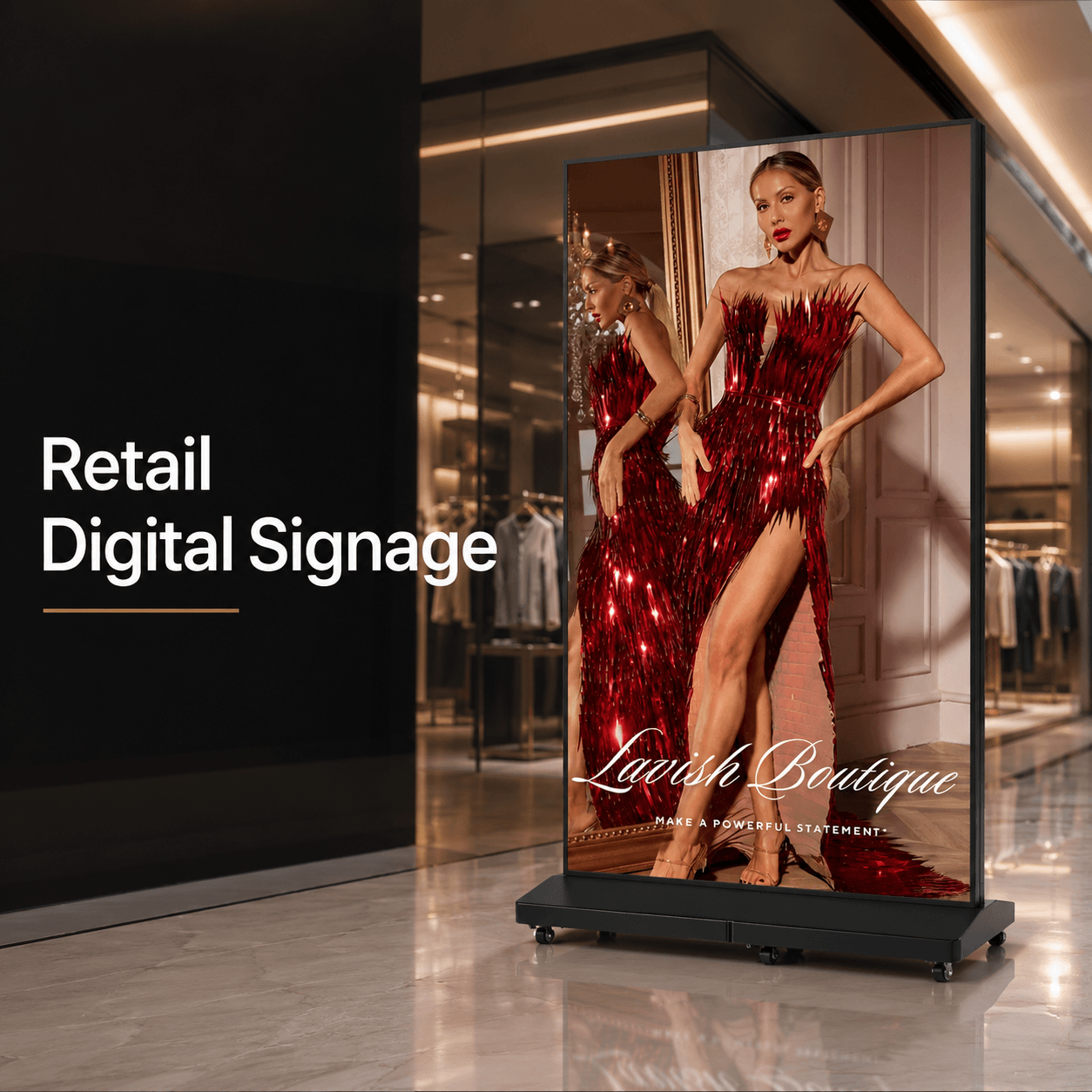
Not every digital signage kiosk needs touch. For advertising, events, exhibitions, rental operations, and high-impact visual display, this LED solution is built for indoor advertising and event scenarios. P1.86mm pixel pitch, 80-inch viewing area, foldable floor-standing structure, and a wheeled flight case for transport and storage.
Especially useful for events and rental work — a display that looks sharp in one location but is difficult to move creates real problems for event teams. The GOB (Glue on Board) surface process protects the screen from dust, moisture, and physical impact. Supports seamless splicing, plug-and-play use, timer switch, split-screen display, a remote publishing system, and Wi-Fi content control.
Hardware factors worth checking
A digital signage kiosk is a long-term working device. It may run every day in a high-traffic space. The buying decision should include more than appearance and price.
Screen size and resolution
A 32-inch touchscreen kiosk gives enough space for maps, menus, forms, and product information. Larger LED displays work better for visual impact, advertising, and event content. Full HD resolution is usually sufficient for touchscreen information kiosks. For large LED signage, pixel pitch and viewing distance become more important — a smaller pixel pitch shows clearer detail at closer viewing distances.
Brightness and viewing angle
Indoor displays don't always need very high brightness, but they still need enough for retail lights, lobby lights, and public spaces. Wide viewing angles matter too — people rarely stand directly in front of the screen.
Operating system and software flexibility
If your kiosk needs custom software, navigation apps, self-ordering systems, or third-party tools, check OS compatibility early. Android works well for many display and app-based workflows. Windows support matters when your business needs specific software, drivers, or external systems.
Connectivity
Wi-Fi is useful, but Ethernet is often more stable for fixed commercial installations. USB, TF card, and HDMI help with local content transfer or external device input. For larger projects, remote content updates reduce daily operating overhead significantly.
Structure and mobility
A kiosk used in a mall may need a stable floor-standing body. A display used for rental events may need a foldable structure and transport case. A product used in a small shop may need easy movement and a compact footprint.
Maintenance
Every kiosk needs maintenance at some point — cleaning, content updates, cable access, software reset, physical movement. A product that is simple to maintain often creates better long-term value than one with a longer feature list that's harder to manage in practice.
Content management matters as much as hardware
A good display without a good content workflow can still create problems. Buyers should think about how content will be uploaded, scheduled, updated, and checked — before choosing hardware, not after.
For simple use, USB or local file transfer may be enough. For stores, campuses, or multi-location projects, remote content management is almost always more useful. It allows staff to update promotions, notices, maps, or videos without visiting every device.
For larger projects, the content system should support:
- Content scheduling by time and date
- Remote publishing without on-site visits
- Split-screen display for multiple content zones
- Device status checking and monitoring
- Different content for different locations
- Offline playback when the network is unstable
The screen is what people see. The content system is what keeps it useful.
Indoor, outdoor, and event use are different problems
A kiosk for an indoor retail store is not the same as a display for an outdoor public space. An event display is different again. This is why buyers should avoid treating all display products as interchangeable.
| Environment | Primary requirements | What to prioritize |
|---|---|---|
| Indoor commercial | Touch response, visual quality, software flexibility | OS compatibility, clean design, ease of update |
| Outdoor public | Weather resistance, sunlight readability, public impact protection | IP rating, brightness (2,500+ nits), sealed enclosure |
| Event and rental | Portability, fast setup, transport protection | Flight case, foldable structure, splicing support |
The correct display depends on where it will work and how often it will move. Using a well-spec'd indoor kiosk outdoors is a common — and expensive — mistake.
A simple buying framework
Before placing any order, it helps to work through six straightforward questions. The answers typically narrow the field considerably.
What is the main use case?
It determines whether you need touch, LED, wall-mounted, or floor-standing hardware. Get this wrong and nothing else matters.
Where will it be installed?
Indoor, outdoor, event, and rental use need different hardware designs. The environment is the biggest single spec driver.
How will content be updated?
Remote publishing saves significant time for stores and multi-site projects. Clarify this before choosing hardware.
Will users interact with it?
Touchscreen kiosks need a different OS, layout design, and content structure. Non-interactive displays can be simpler and cheaper.
How often will it move?
Event and rental teams should prioritize transport protection and setup speed — often over visual spec.
Who will maintain it?
Maintenance access, software reset capability, and content control affect long-term usability more than most spec sheets show.
How digital signage kiosks fit into commercial spaces today
Digital signage is part of a larger AV and display industry that keeps moving quickly. Trade events like InfoComm show how quickly display technology, content systems, and interactive environments continue to develop.
For most business buyers, that doesn't mean every project needs the most advanced system. It means the display should fit the actual workflow. A retail store may need simple product promotion. A museum may need guided interaction. A hotel may need guest information. An event team may need a portable display that looks sharp and sets up in under an hour.
The best digital signage kiosk is not always the most expensive one. It's the one that fits the site, the content, the staff, and the way users actually move through the space.
Frequently asked questions
What is a digital signage kiosk?
A digital signage kiosk is a display system used to show information, advertising, wayfinding, self-service content, or interactive functions in a physical space. It can be floor-standing, wall-mounted, or portable, depending on the use case.
What's the difference between a digital signage kiosk and a regular display?
A regular display mainly shows content on a screen. A digital signage kiosk typically includes a structural housing, content control capability, optional touch interaction, commercial-grade connectivity, and hardware built for continuous operation in public or commercial spaces.
Do I need a touchscreen kiosk?
You need a touchscreen kiosk if users must interact with the screen — such as searching for information, placing orders, checking in, or using wayfinding maps. If the display is purely for showing content to passing viewers, a non-touch display is usually a better fit and a simpler system to manage.
Where can digital signage kiosks be used?
Retail stores, malls, hotels, hospitals, museums, university campuses, government offices, restaurants, exhibition spaces, and event venues. The hardware choice should reflect the specific environment and user interaction needs of each location.
How do I choose the right digital signage kiosk?
Start with the use case — interactive or display-only, indoor or outdoor, fixed or portable. Then check OS compatibility, screen size, content update method, connectivity needs, installation space, and who will handle maintenance. Hardware spec should follow from these answers, not lead them.
What is GOB technology in LED displays?
GOB stands for Glue on Board. It's a surface process that coats LED modules with a transparent epoxy resin, making the screen resistant to moisture, dust, and physical impact. Particularly useful for event and rental LED displays that get transported and handled frequently.

Leave a comment
This site is protected by hCaptcha and the hCaptcha Privacy Policy and Terms of Service apply.