
MWEdisplay Academy · Touchscreen Buying Guide
A large touch screen monitor can work as a product finder, check-in screen, room display, dashboard, or interactive sign. The hard part is not finding a big screen. It is choosing a size, touch system, mounting method, and content workflow that fit the people standing in front of it.
Search results often group very different products under the same term. A 32-inch wall-mounted touchscreen for a reception desk, a 43-inch digital signage display, and a 75-inch interactive whiteboard may all be called a large touch screen monitor. They do not solve the same problem.
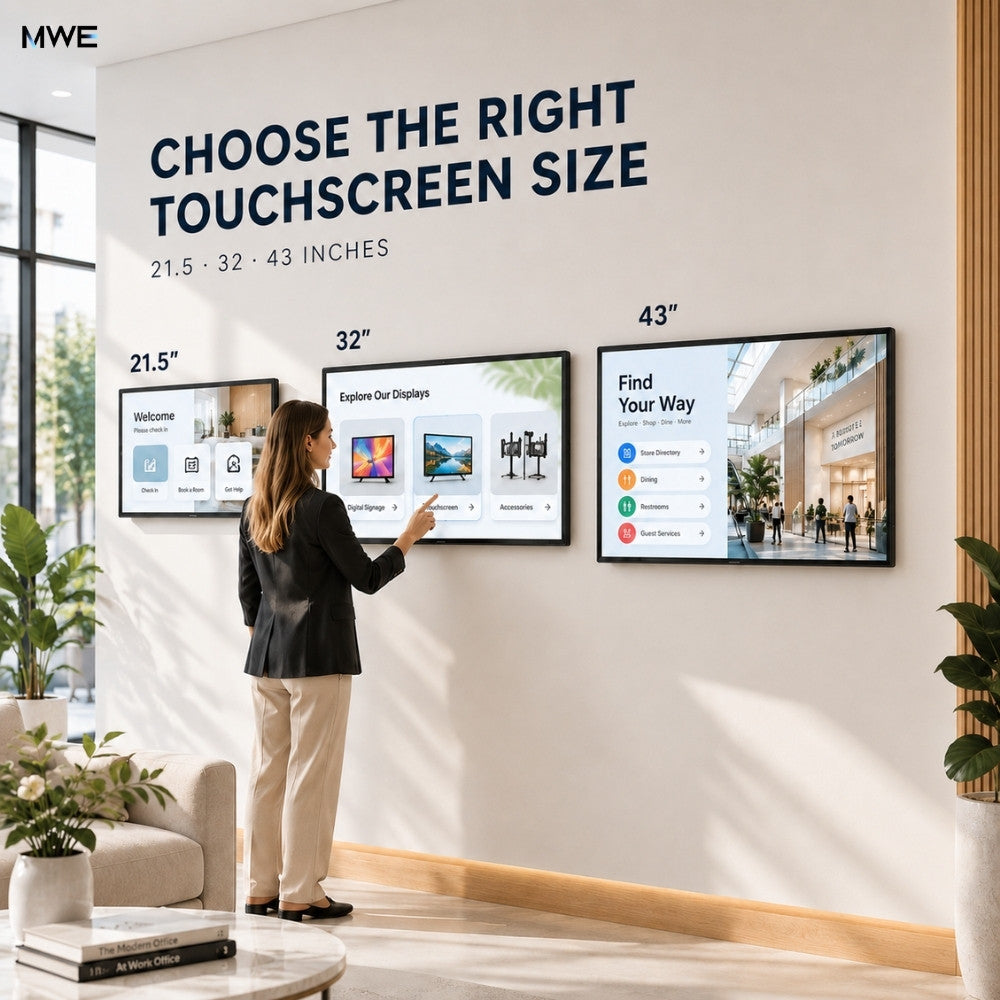
This guide focuses on commercial digital signage from roughly 21.5 to 43 inches: large enough to present useful information, yet close enough for one person to touch without stretching across a meeting-room screen. We will compare the common sizes, PCAP and infrared touch, wall mounting and floor placement, plus Android and Windows-connected workflows.
Short answer: choose 21.5 inches for focused, close-range tasks; choose a 32 inch touch screen monitor for the best balance of readable content and comfortable reach; choose 43 inches when several people must notice the screen or when the interface needs larger images and buttons. For public-facing use, also check the commercial duty cycle, touch technology, screen brightness, mounting details, cable path, and how staff will update content.
What counts as a large touch screen monitor?
There is no single industry line where a touchscreen becomes “large.” Desktop monitors usually sit close to one user. Interactive whiteboards serve a room. Commercial touch signage sits between those two categories.
For a wall display that people actively touch, 21.5, 32, and 43 inches are practical reference points. The screen must be visible from the approach path, but its controls must stay inside a comfortable reach zone. Bigger is not automatically better. A very wide interface can force users to move their arms too far, while a small screen can hide useful choices or make text hard to scan.
The current market reflects that range. Elo’s large-format touchscreen range starts around 32 inches and includes both PCAP and infrared options. LG Business also positions touch displays as interactive digital signage, not only as computer monitors. That distinction matters: a commercial display has to fit an installation and an operating routine, not just a desk.
21.5 vs 32 vs 43 inch touch screen monitor
The best size depends on viewing distance, interface density, the number of users, and the wall area available. The dimensions below are approximate active image areas for a 16:9 panel. The complete enclosure will be larger, so always use the technical drawing for final installation.
| Size | Approx. 16:9 image area | Best fit | Main advantage | Watch for |
|---|---|---|---|---|
| 21.5 inch | 18.7 × 10.5 in 47.6 × 26.8 cm |
Room schedules, compact directories, reception forms, small product selectors | Easy to reach and easier to fit on narrow walls | Small text and dense catalogs can feel cramped |
| 32 inch | About 27.9 × 15.7 in About 70.8 × 39.8 cm |
Retail browsing, visitor check-in, wayfinding, interactive menus, dashboards | Strong balance between viewing impact and one-person touch reach | Needs a clear wall zone and planned cable access |
| 43 inch | About 37.5 × 21.1 in About 95.2 × 53.5 cm |
Showrooms, larger directories, visual catalogs, public information points | Larger images and controls attract attention from farther away | Wide interfaces can place buttons outside comfortable reach |
Choose 21.5 inches when the task is personal and brief
A 21.5-inch screen works well when one person stands close and completes a clear task. Think room booking, a visitor form, a short questionnaire, or a small catalog. It is also easier to place near a door, counter, or narrow corridor.
Do not shrink a desktop website onto it and expect a good result. Use large buttons, short labels, and a focused path. The screen may be physically smaller, but the tap targets should not be.
Choose 32 inches for the broadest range of signage uses
For many projects, 32 inches is the sensible middle. The screen is visible across a lobby or retail zone, yet most of the interface can remain within one person’s reach. It gives designers enough room for a hero image, product cards, maps, filters, or a form without turning the screen into a wall-sized whiteboard.
A commercial 32-inch touchscreen example from Beetronics lists wall, flush, embedded, and desktop installation, while Elo describes its 32-inch model for signage, self-service, dashboards, and reception use. Those SERP patterns help explain why “32 inch touch screen monitor” has clear commercial intent: buyers are comparing a deployable business tool, not only screen specifications.
Choose 43 inches when visibility matters as much as touch
A 43-inch display gives content more presence. It can show a life-size product view, a larger floor map, or a visual menu that people notice before they arrive at the screen. It also works when one person interacts while others watch.
Still, the interface needs discipline. Keep primary actions near the center and lower half of the display. Do not scatter small controls into every corner. If the main job is group annotation from across a room, a larger interactive whiteboard may be the better category.
Practical rule: select the smallest screen that keeps the content readable at the approach distance and keeps all important touch targets comfortable for the intended users. Then test the interface at full scale before mounting anything.
Large touch screen monitor vs interactive whiteboard
| Decision point | Commercial touch monitor / signage | Interactive whiteboard |
|---|---|---|
| Typical size | About 21.5 to 55 inches | Often 55 to 86 inches or larger |
| Main user | One person at close range | A presenter or group in a room |
| Common tasks | Browse, check in, navigate, order, inspect, control | Teach, annotate, collaborate, present, video conference |
| Placement | Reception, retail wall, kiosk, corridor, counter area | Classroom, meeting room, training room |
| Interface | Short self-service flow with large tap targets | Canvas, whiteboard, presentation, and multi-user tools |
Choose a large touch screen monitor when the display belongs to a public-facing workflow and people stand near it. Choose an interactive whiteboard when a room needs group collaboration and content must be readable from the back.
For a broader explanation of interaction models, see our interactive digital signage guide.
PCAP vs infrared touch: which is better?
PCAP stands for projected capacitive touch. It detects changes in an electrical field through the glass, which creates the familiar, direct feel people expect from phones and tablets. Infrared, or IR, places a light grid around the display and detects where an object interrupts that grid.
| Factor | PCAP touch | Infrared touch |
|---|---|---|
| Touch feel | Fast, precise, and tablet-like | Responsive, though the raised frame can feel less seamless |
| Front design | Clean glass surface and slim edge | IR emitters normally sit in a bezel around the screen |
| Input | Best with a finger or supported capacitive input | Can detect a finger, passive stylus, or other opaque object |
| Scale | Common for kiosks and medium-size commercial displays | Often economical for very large collaboration screens |
| Best fit | Retail, self-service, directories, check-in, wall signage | Large whiteboards, classrooms, and group annotation |
Choose PCAP when a polished front surface and accurate close-range interaction matter. Choose IR when the display is much larger, needs broad input options, or serves collaborative writing. Both technologies can support multi-touch; the exact point count, glove support, palm rejection, and operating-system behavior depend on the model.
For a neutral overview of the main sensing methods, see ViewSonic’s touch panel explanation.
Wall mount vs floor stand vs embedded installation
A touchscreen is used at arm’s length, so installation affects the experience more directly than it does with a passive advertising screen. Mount height, tilt, wall strength, and protrusion all matter.
| Installation | Choose it when | Strength | Trade-off |
|---|---|---|---|
| Wall mount | The location is permanent and floor space is limited | Clean appearance and stable touch surface | Wall structure, height, cables, and service access must be planned early |
| Floor stand | The layout may change or the wall cannot be used | Faster placement and easier relocation | Uses floor space and needs anti-tip stability |
| Monitor arm | Staff need adjustable reach or viewing angle | Flexible position for counters and workstations | The arm must support the display weight and repeated touch force |
| Suspended mount | The screen must stay visible above furniture or fixtures | Keeps floor and some wall areas clear | Usually poor for frequent touch unless the structure is rigid and reachable |
| Embedded / flush | The display is part of a kiosk, wall panel, or custom fixture | Integrated look and controlled access | Needs ventilation, dimensional drawings, and a service route |
For a wall mount touch screen monitor, verify the VESA pattern, total weight, bracket load rating, wall construction, fastener type, orientation support, cable clearance, and ventilation needs. A bracket that fits the holes is not automatically suitable for the load or the touch force.
Accessibility rules vary by country and project. Consider reach range, clear floor space, controls, protrusion from the wall, and the needs of seated users. For commercial sites, the installer or project designer should check the local requirements rather than relying on a generic height number.
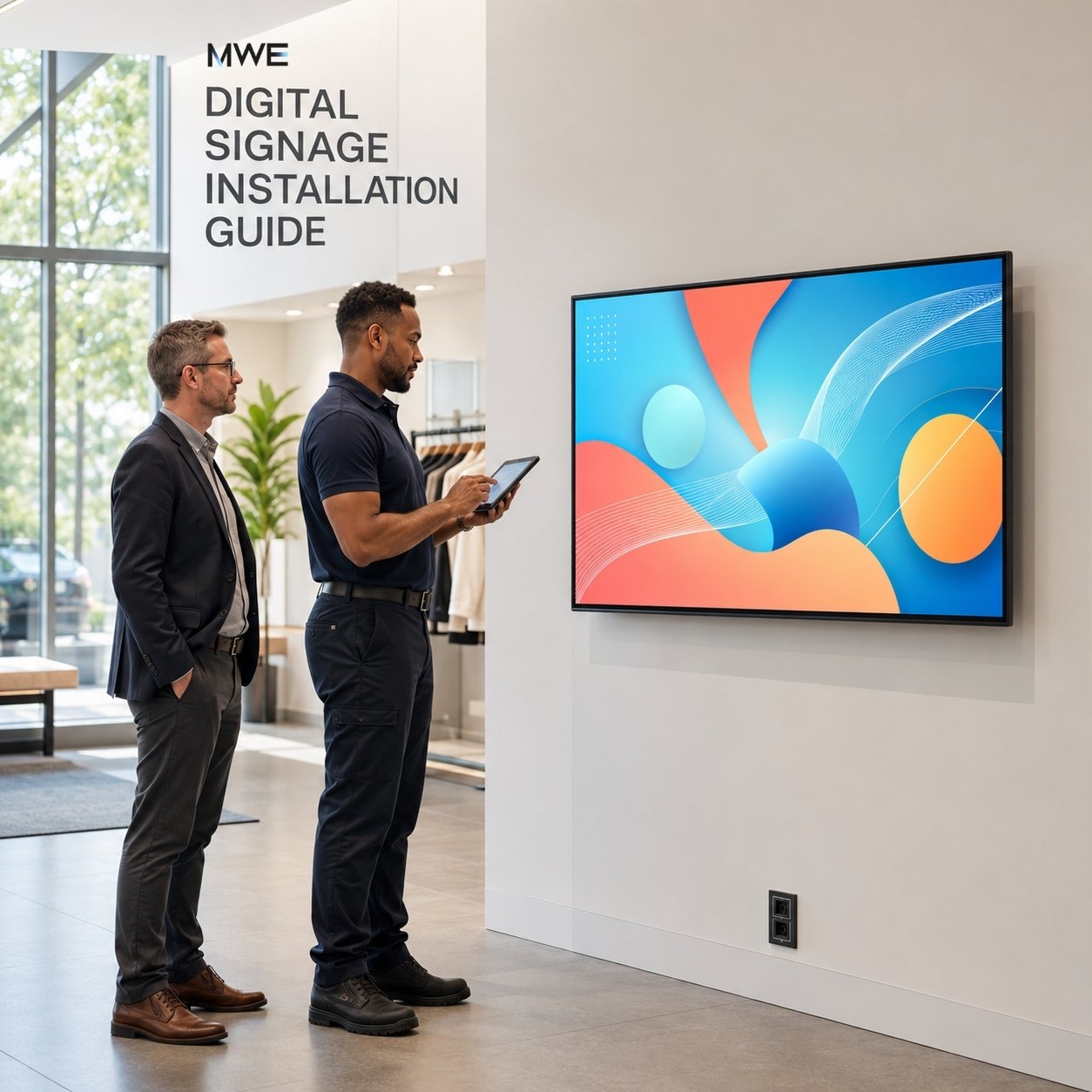
Our separate digital signage installation guide covers site surveys, wall structure, power, networking, ventilation, and service access in more detail.
Android standalone vs Windows-connected operation
A large touchscreen can be a self-contained Android display, an external monitor for a computer, or both. Decide which role matters before choosing apps and cables.
| Workflow | Best for | What it needs | Operational note |
|---|---|---|---|
| Built-in Android | Signage apps, forms, dashboards, media, simple self-service | Compatible Android app or browser content, network if required | Fewer external boxes and cables |
| Windows or mini PC | Custom business software, browser systems, Windows-only tools | Video connection plus a touch data connection | More software flexibility, but another device to power and maintain |
| HDMI media player | Managed signage platform or dedicated playback appliance | HDMI for image; USB may be required if touch input is used | Confirm that the player and app accept touch input |
Do not miss the touch cable: HDMI normally carries video and audio, not touchscreen data. When the display is connected to a Windows PC, mini PC, or external player, touch control commonly needs a separate USB upstream/data cable. Some USB-C connections can combine video and touch, but only when both devices and the cable support the required functions. Confirm the ports for the selected model.
This distinction appears in professional product documentation as well. The Beetronics 32-inch monitor, for example, separates HDMI or DisplayPort video from USB touch activation. Clear cable planning avoids the frustrating situation where the picture appears but the screen does not respond.
USB playback vs CMS content management
| Method | Best for | Advantage | Limit |
|---|---|---|---|
| USB playback or file copy | One screen, stable content, occasional updates | Simple and can work without a network | Someone must visit the display to update it |
| Built-in app | Interactive forms, directories, browser tools, dashboards | The screen can run the experience directly | App compatibility, permissions, and updates need testing |
| CMS | Several screens, frequent changes, schedules, multiple locations | Central publishing and easier content control | Requires setup, network access, accounts, and ongoing administration |
Choose USB when content changes rarely and local access is easy. Choose a CMS when staff publish often, manage several locations, or need scheduling and remote updates. The screen is only half of a signage system; the daily publishing routine determines whether it stays useful after launch.
Commercial touch screen monitor vs consumer monitor
| Decision point | Commercial touch display | Consumer monitor |
|---|---|---|
| Operating schedule | Sold with a stated commercial duty cycle, which may include 24/7 use | Usually designed around personal or office sessions |
| Mounting | Often supports fixed, portrait, kiosk, or embedded applications | Usually optimized for a desktop stand |
| Control | May include auto-start, scheduling, remote management, or signage settings | Usually depends on the connected computer and manual controls |
| Service planning | Ports, mounting, power behavior, and replacement are considered as part of deployment | Service assumptions center on an individual user |
| Best fit | Public-facing, long-hour, repeatable business installation | Personal workstation or light-duty internal use |
“Commercial” does not mean every model has the same rating. Check the documented operating hours, orientation, temperature range, warranty terms, and expected service life. A 24/7 rating does not remove the need for ventilation, scheduled maintenance, stable power, or sensible screen-content settings.
Brightness, glare, and where 350 nits fits
Brightness is only useful in context. Around 350 nits is a normal choice for many indoor offices, reception areas, retail interiors, and meeting spaces with controlled light. It is not a direct-sunlight specification.
Anti-glare glass can reduce distracting reflections, which helps users read and touch the interface under ceiling lights. It does not make the panel brighter. A screen facing a sunny shop window may need a higher-brightness display, a changed angle, shading, or a different location.
Before ordering, stand at the planned position at the brightest time of day. Look for windows behind the user, bright fixtures reflected in the glass, and shadows that may affect cameras or scanners around the display.
A practical installation checklist
Define the one main user task
Write it in one sentence: find a product, check in, view a map, control a dashboard, or submit a form. Extra features come later.
Mock up the interface at full size
Print a paper layout or show the interface on a similar screen. Check text size, tap targets, reach, and the time needed to finish the task.
Confirm the installation drawing
Check enclosure dimensions, weight, VESA pattern, approved orientation, bracket capacity, port position, cable bend radius, and ventilation space.
Plan power, network, and touch data
Decide whether the display runs Android, USB media, a CMS, or an external PC. List every cable and test the full signal path before wall installation.
Set the screen at a usable height
Base the height on real users and local accessibility requirements. Keep frequent controls within easy reach and leave clear floor space.
Test the daily operating routine
Verify startup after a power interruption, scheduled on/off behavior, content updates, app recovery, cleaning, and who receives support calls.
Where a wall-mounted large touchscreen works well
- Retail: product comparison, endless-aisle catalogs, loyalty enrollment, and guided selection.
- Reception: visitor check-in, directories, appointment confirmation, and company information.
- Offices: room scheduling, dashboards, production status, and shared control panels.
- Showrooms: visual catalogs, finish selectors, product configuration, and technical documents.
- Healthcare and public service: wayfinding, queue guidance, forms, and procedure information, subject to the required privacy and accessibility controls.
- Restaurants and hospitality: menus, property information, event schedules, and service requests.
- Exhibitions: product exploration and lead capture when the screen can be secured and the interface is reset between users.
If people only need to watch promotions or read a schedule, touch may add cost without adding value. In that case, start with our broader digital signage display guide and compare non-touch options.
How the MWE wall-mount touchscreen fits this category
MWE Wall-Mount Touchscreen Digital Signage, Android 14
MWEdisplay offers a commercial wall-mounted touchscreen in 21.5, 32, and 43-inch sizes. It is designed for indoor retail, offices, reception areas, exhibitions, and other public-facing applications where people view and touch the display at close range.
The product also supports VESA mounting and can work with compatible external computers or media players. Mounting patterns, compatible brackets, available ports, and installation methods can vary by size. Confirm the selected model’s specification and cable requirements before installation.
The practical value is choice. A team can run compatible content directly on Android, use simple USB updates, connect an external source through HDMI, or add a CMS as the project grows. That flexibility is useful, but the best configuration is still the simplest one that supports the real task.
Final recommendation
Start with the user, not the diagonal measurement. If one person completes a short task in a tight area, 21.5 inches may be enough. If the screen must balance visibility, content space, and comfortable reach, 32 inches is the safest all-round starting point. If people should notice the content from farther away or the interface depends on larger visuals, move to 43 inches and design the touch layout carefully.
Then check the less exciting details. Wall structure. Bracket rating. Port access. Touch data. Brightness. Content updates. Restart behavior. These choices rarely appear in the hero image, but they decide whether the screen feels easy to use six months after installation.
Large touch screen monitor FAQ
What is the best size for a large touch screen monitor?
For close-range commercial signage, 32 inches is often the best balance of readable content and comfortable reach. Choose 21.5 inches for compact, focused tasks and 43 inches when stronger visibility or larger visual content matters.
Is a 32 inch touch screen monitor big enough for digital signage?
Yes. A 32 inch touch screen monitor is large enough for product browsing, check-in, directories, menus, dashboards, and wayfinding while remaining manageable for one-person touch interaction.
Can a touch screen monitor be mounted on a wall?
Yes, if the display supports wall mounting and the mount matches its VESA pattern, weight, orientation, and installation conditions. The wall structure, fasteners, cable clearance, height, ventilation, and service access also need to be checked.
Is PCAP or infrared touch better for digital signage?
PCAP is usually better for medium-size, close-range signage because it gives a clean glass front and precise, tablet-like touch. Infrared often suits very large displays, broad input methods, and collaborative whiteboard use.
Does HDMI carry touch screen data?
HDMI normally carries video and audio, not touch input. A touch monitor connected to a PC or external player commonly needs a separate USB data cable. Some supported USB-C connections can combine video and touch.
Is 350 nits bright enough for digital signage?
It is suitable for many indoor spaces with controlled lighting, including offices, reception areas, and retail interiors. It is generally not intended for direct sunlight or demanding window-facing use.
Do I need Android or Windows for a touch screen display?
Use built-in Android for compatible signage apps, media, browser content, and simple self-contained workflows. Connect a Windows PC when the project requires Windows-specific software or more computing flexibility.
When should I use a CMS instead of USB playback?
USB is practical for one screen with infrequent updates. A CMS is more useful when content changes often, screens operate in several locations, or the team needs remote publishing and scheduling.
Plan the screen around the real task
MWEdisplay can help compare screen size, touch workflow, mounting, content input, and day-to-day management for a commercial project.
Contact MWEdisplay or review the wall-mount touchscreen digital signage.
Editorial note: Product specifications, operating systems, ports, accessories, and mounting details can change by model and size. Confirm the current product page, technical drawing, and installation guide before purchasing or mounting a display.

コメントを書く
このサイトはhCaptchaによって保護されており、hCaptchaプライバシーポリシーおよび利用規約が適用されます。