
MWEdisplay Academy · Restaurant Guide
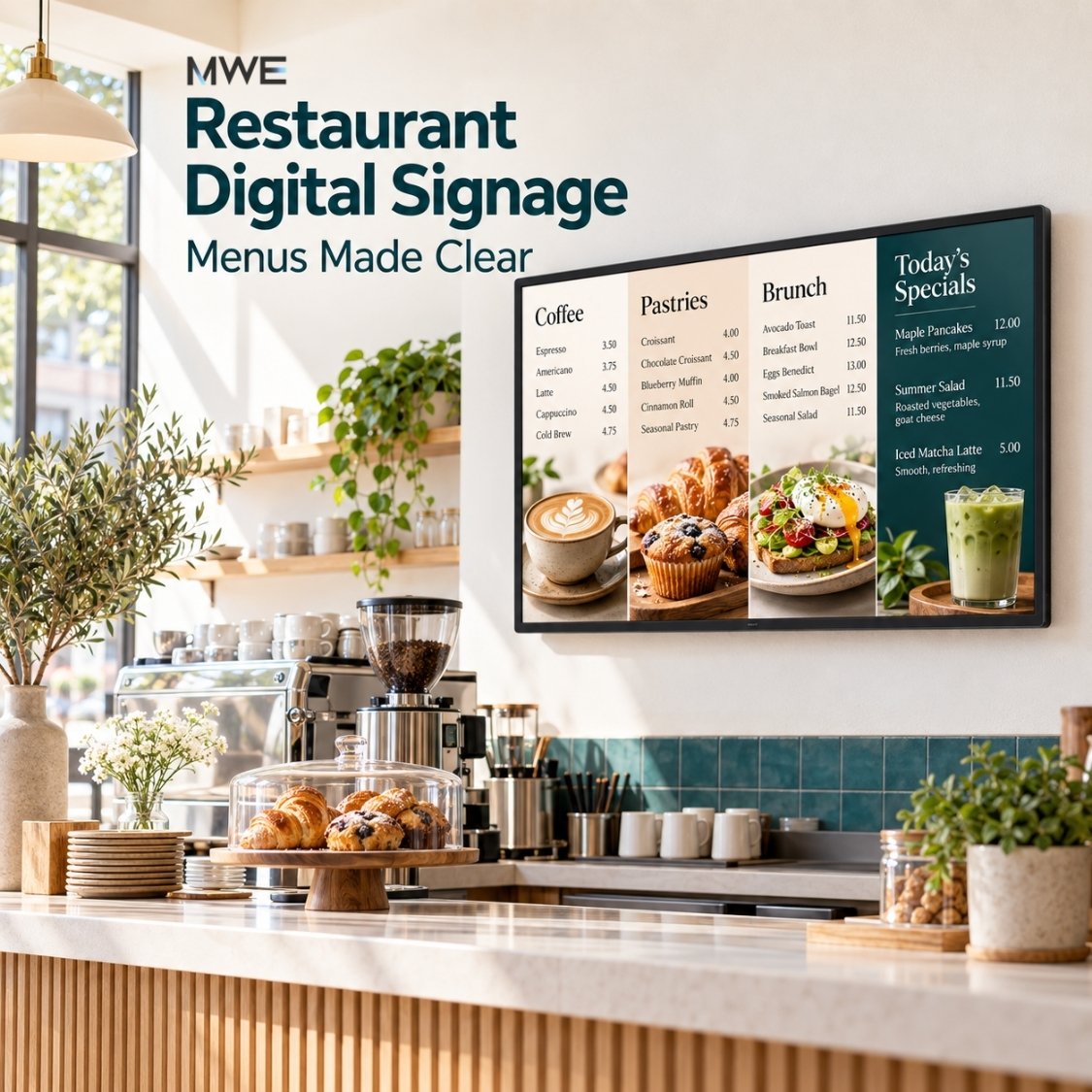
Restaurant digital signage works best when it helps a guest make the next decision: what to order, which offer applies, or where to collect a meal. A bright screen helps. A clear, current menu matters more.
Picture a guest reaching the front of a lunch queue. Just as they find the sandwich prices, the screen switches to a full-screen coffee promotion. The display works perfectly. The menu does not.
This guide focuses on that everyday gap. It explains how to place restaurant screens, separate menus from promotions, manage changes during service, and choose a display format that fits the job. You do not need to turn every surface into a screen.
Short answer: keep core menu items and prices easy to see, place promotions where guests have time to notice them, and give one staff member responsibility for updates. Choose hardware after testing the content from the actual viewing position. Add touch, scheduling, or system integrations only when the workflow needs them.
What is restaurant digital signage?
Restaurant digital signage is the use of screens to show menus, daily specials, service directions, and other information in a food-service space. It may be a wall-mounted menu behind a counter, a small dessert display beside the register, or a floor-standing sign near the entrance.
A working setup has three parts: the screen, a way to play content, and a reliable update process. Playback may come from a built-in Android system, compatible USB files, an external player, or a content management system (CMS). A CMS is software that helps staff publish and manage screen content.
The restaurant format changes the job. A café may need a readable drinks menu and one seasonal offer. A quick-service restaurant needs guests to compare meals before they reach the cashier. A table-service restaurant may keep printed menus and use a screen only for specials near the host stand.
Yodeck's restaurant signage overview describes applications from menus and promotions to pickup information. Those are separate workflows, not functions that every screen provides out of the box.
Digital menu boards vs promotional screens vs self-ordering kiosks
These terms often appear together, but they describe different tasks. Set the task before choosing touch capability or software.
| Screen type | Main job | What the setup needs | What not to assume |
|---|---|---|---|
| Digital menu board | Show items, options, and prices before ordering. | Readable layout, suitable placement, and accurate updates. | It does not take orders just because it shows a menu. |
| Promotional display | Highlight a special, dessert, drink, or event. | One clear offer, useful imagery, and correct availability. | A promotion should not replace the main menu while guests read it. |
| Self-ordering kiosk | Let a guest choose items and submit an order. | Touch hardware, ordering software, menu configuration, and tested order routing. Payment requires a supported payment setup. | A touchscreen or Android system alone is not a complete ordering solution. |
If guests order with a staff member, a non-touch menu display may be all you need. If guests browse ingredients or product options themselves, touch can help. If they submit orders, the software and restaurant systems become central to the project. Our digital signage kiosk guide covers the broader hardware choices.
Where should restaurant digital signage go?
Walk the guest route before deciding where to mount a screen. Look from the entrance, the back of the queue, the order point, and the pickup area. A screen can be visible from the dining room yet disappear behind people waiting at the counter.
| Location | Guest's question | Useful content | Placement check |
|---|---|---|---|
| Entrance or host area | Is this the right place, and where do I go? | Service hours, today's special, dine-in or pickup directions. | Keep doors and walking routes clear. Test reflections at busy hours. |
| Before the order point | What can I order, and what does it cost? | Core menu, sizes, prices, and clear meal options. | Make it readable before guests reach the cashier, not only from the counter. |
| Counter or dessert display | Would I like something extra? | A featured drink, pastry, dessert, or simple add-on. | Use a compact screen for close viewing; do not block staff or payment equipment. |
| Pickup area | Where do I wait or collect? | Pickup instructions and service directions. | Live order status needs a verified data connection; static directions do not. |
| Dining or waiting area | What else is available? | Seasonal dishes, upcoming events, or a short brand story. | Avoid intrusive sound and rapid motion beside seated guests. |
For a small café, the first useful improvement may be a steady drinks menu behind the counter. For a restaurant with a long entrance corridor, a freestanding special board may make more sense. Neither needs to become a multi-screen rollout.
Window-facing is a separate requirement. An indoor display that looks clear behind the counter may look washed out beside bright glass. Check daylight, reflections, heat, and the product's intended environment. Anti-glare glass does not turn an indoor screen into an outdoor-rated or direct-sun display.
Static menu layouts vs rotating promotions
A static layout on a digital screen is not a printed menu. Staff can still update it. “Static” simply means the information stays in place while guests read.
That is often the better choice for the main menu. Keep category headings, product names, sizes, and prices in predictable positions. Let guests compare without waiting for a slide to return.
Motion has a role, too. A short clip of a finished dish can work on an entrance display or a separate promotional screen. It is less useful if it pushes the price list off the only menu board.
| Approach | Good fit | Main caution |
|---|---|---|
| Stable full-screen menu | Guests comparing items before ordering. | Do not squeeze too many items onto one screen. |
| Menu plus a promotional zone | A display large enough to keep both sections readable. | A smaller menu area can make essential text too small. Confirm layout support. |
| Separate promotional screen | An entrance, counter, or waiting space with a distinct task. | Keep the offer relevant to that location and service period. |
| Full-screen rotating menu pages | A menu that cannot fit in one view, after careful testing. | Guests may miss an item or price. Test the whole sequence during realistic use. |
There is no universal slide duration that fixes an overcrowded menu. Ask someone unfamiliar with it to find a meal, compare two choices, and read the price from the queue. If they wait for information to return, simplify the layout or change the screen plan.
Build menu content around the service period
Breakfast, lunch, and dinner rarely need identical content. Changing menus by time of day is often called dayparting. It can reduce irrelevant choices, but only if the schedule matches what the kitchen actually serves.
Start with a small set of approved layouts rather than rebuilding the menu every morning. Keep item names and prices in one maintained source, and use consistent names across the screen and ordering system. The following is an illustrative café plan, not a measured customer case.
| Service period | Main menu | Supporting promotion | Staff check |
|---|---|---|---|
| Breakfast | Coffee, breakfast dishes, and available sizes. | One pastry pairing. | Confirm opening stock and the offer's end time. |
| Lunch | Lunch dishes, meal options, and prices. | One lunch special. | Remove breakfast-only offers and check kitchen availability. |
| Afternoon | Available drinks and remaining food choices. | A dessert or seasonal drink. | Do not keep advertising a sold-out item. |
| Closing period | Items still available to order. | Next opening time or a relevant service notice. | Confirm actual kitchen closing time. |
A supported CMS can handle scheduled changes. For example, Yodeck's scheduling documentation explains timed events and content selection. This illustrates a software function; it does not establish compatibility with every MWEdisplay model or confirm that the same feature comes with every CMS plan.
Check the player's time zone, overlapping schedules, holiday exceptions, and default content. A scheduled screen power-on is also not the same as a scheduled menu change. Test both separately.
Make price changes and sold-out updates a daily routine
The hardest part of restaurant digital signage is often ownership. Who changes the screen when the soup sells out? Who checks whether the new drink price reached every menu?
Give the shift a named content owner and a backup. A short procedure is easier to follow during a rush than a long software manual.
- Confirm the change. Check the item name, price, availability, and time it should take effect with the person responsible.
- Update the approved source. If the signage and POS do not share data, coordinate both changes rather than assuming they will synchronize.
- Publish to the right screens. Replace old local files or push the updated CMS content. Check that outdated slides are no longer in the playlist.
- Look at the physical display. A successful upload does not prove the correct menu is on screen.
- Hand over the status. Tell the next shift about temporary removals and when offers end.
Automatic sold-out removal needs a supported integration and reliable item mapping. Without that, manual updates are a normal part of the workflow. Do not advertise automation the system has not demonstrated.
Keep ingredient and allergen information tied to the restaurant's approved records. A screen should not make claims that staff cannot verify.
Choosing MWEdisplay screens for restaurant use
Choose the format around the reading task. You do not need touch for a menu above a service counter, and a compact desktop screen will not replace a menu guests read from across the room.
Tabletop displays: close-up specials and menu browsing
The MWE Table Touch Screen Digital Display comes in 8, 10.1, and 14-inch sizes. Its slanted all-in-one format suits nearby viewing at a host desk or counter. The product listing specifies Android 11, 10-point PCAP capacitive touch, Wi-Fi, and USB inputs.
Use it for a featured dessert, a drinks selection, or compatible interactive content. The listing also offers cloud CMS publishing and scheduling; confirm the included service terms and required workflow before deployment. Touch hardware does not include a complete ordering or payment system by itself.
Wall-mounted displays: keep information visible without using counter space
The MWE Wall-Mount Touchscreen Digital Signage is available in 21.5, 32, and 43-inch sizes. The current listing specifies Full HD resolution, Android 14, 4GB RAM, 32GB storage, 10-point PCAP touch, 350-nit brightness, and anti-glare glass.
Compatible USB content, HDMI input, and optional MWE CMS integration provide different publishing routes. For an indoor restaurant menu, test the full layout from the queue. Do not choose a smaller screen just because all the text fits in the design file.
If people will use touch, place the interactive controls within comfortable reach instead of mounting the screen like an overhead menu. Confirm the mounting pattern and bracket for the selected size. For closer comparison, see our touchscreen size guide.
Floor-standing displays: entrance offers and directional messages
The MWE Floor Standing Digital Signage range offers 32–65-inch sizes with touch and non-touch options. It is a useful format to consider when a restaurant needs a visible indoor entrance promotion or pickup direction and has suitable floor space.
Select the exact variant for the required resolution and touch capability. Keep the base and cables out of walking routes, and protect the display from spills, grease, and heat. An indoor freestanding screen is not automatically suitable for a sidewalk or drive-thru.
You can also compare the MWEdisplay retail and restaurant display range. These are hardware options for different locations, not a requirement to buy one of each.
Plan updates and a fallback before opening
Local playback can be practical when one screen shows a menu that rarely changes. Frequent specials, several screens, or remote staff may make CMS publishing more useful. The choice depends on the work, not just the number of devices.
Ask for a demonstration using your actual files. Confirm file formats, scheduled changes, reboot behavior, and who can publish. A device's Android version alone does not prove that a particular signage application will work as required.
Also test an internet outage. Some players keep downloaded content running, while live pages and data feeds may need connectivity. Yodeck's offline guidance, for example, distinguishes supported offline playback from functions that require a connection. Verify the behavior of your own player, software, and content rather than assuming all systems work the same way.
Keep a current backup menu available for staff. That may be a printed copy or another approved way to share the menu. A fallback that survives a network issue may still fail in a power outage, so test those situations separately.
For project budgeting, use our digital signage cost guide. For mounts, power, cabling, and handover, see the digital signage installation guide.
A pre-service checklist for restaurant screens
- Read the smallest essential text from the back and sides of the queue.
- Check visibility with people standing in the normal ordering positions.
- Inspect glare during the hours when the restaurant gets strong daylight.
- Match item names, sizes, prices, and availability to the approved menu.
- Test service-period changes and the end of every limited-time offer.
- Confirm that touch, if used, serves a real purpose and remains within reach.
- Test recovery after restarting the player and after losing the network.
- Show the shift owner how to remove a sold-out item and restore it later.
- Keep the backup menu current and easy for staff to find.
After launch, watch for repeated questions, missed specials, and time spent correcting content. If you test an offer, compare similar service periods and note other changes such as price, stock, or staffing. A screen alone does not guarantee higher sales or shorter queues.
Start with a clearer menu, not a busier screen
A useful restaurant display does not demand constant attention. It gives guests the information they need at the moment they need it, and lets staff keep that information accurate without disrupting service.
Keep the core menu steady. Give promotions a defined place. Decide who owns updates. Then choose the screen and software that support that plan. That is a more practical starting point than buying a display first and trying to find a job for it later.
Restaurant digital signage FAQ
What is restaurant digital signage?
Restaurant digital signage uses screens to show menus, prices, specials, service information, and other restaurant content. It combines a display with a playback method and a process for keeping information current.
What is the difference between a digital menu board and a self-ordering kiosk?
A digital menu board shows information. A self-ordering kiosk lets guests build and submit an order through dedicated software. Payments, POS connections, and kitchen routing require compatible systems; a touchscreen alone does not provide them.
Should a restaurant menu rotate between slides?
Keep essential items and prices visible while guests decide. Use a separate screen or clearly defined area for rotating promotions. If a menu must use several pages, test the full sequence from the queue and give guests enough time to read it.
Does restaurant digital signage need a monthly subscription?
Not always. A compatible display can show locally stored content without a paid cloud CMS. Remote publishing, scheduling, support, and other features may involve software or service terms. Confirm what the chosen hardware and plan include.
Can restaurant digital signage work without internet?
Compatible local playback can work without a live internet connection. Some CMS players also cache content, but support varies by device, application, and content type. Test an outage before service. Remote updates and live order information usually need connectivity.
What size screen should a restaurant choose?
Choose by viewing distance, menu length, available space, and the smallest text guests must read. Compact tabletop screens suit nearby viewing. A menu viewed across a queue needs a larger display and a layout tested at that distance.
Can a regular TV display a restaurant menu?
Yes, if it supports the required player or file format. Check operating-hour limits, orientation, glare, restart behavior, and warranty terms before using it for daily service. A commercial display may better suit longer hours or specialized placement.
Do MWEdisplay touchscreens include ordering and payment software?
Do not assume they do. MWEdisplay touchscreens provide display hardware and compatible content options. Ordering, payment processing, POS integration, and kitchen workflows require separately confirmed software, services, and any necessary peripherals.
Choose a display for the way your restaurant works
Before selecting a model, share the screen location, viewing distance, menu layout, operating hours, and update method with MWEdisplay. Those details help narrow down the right format.
Product information checked September 24, 2026. Features and software compatibility vary by model and configuration. Confirm current specifications and service terms before purchase. Content schedules in this guide are planning examples, not customer performance claims.

コメントを書く
このサイトはhCaptchaによって保護されており、hCaptchaプライバシーポリシーおよび利用規約が適用されます。